


Are you tired of losing track of critical action items during back-to-back Zoom calls? This Otter AI review explores how this assistant transforms messy conversations into structured summaries, saving users over four hours weekly. Discover if its real-time transcription and smart “Ask Otter” chat features truly justify the investment or if the occasional technical friction makes it a “glitchy” choice for your 2026 workflow.
The essential to remember: Otter.ai transforms meetings into actionable data through real-time AI transcription and automated summaries. This tool significantly boosts productivity by saving users over four hours weekly, allowing for deep focus during calls instead of manual note-taking. While its “Otter Pilot” automation is a benchmark for professional workflows, users must actively manage settings to avoid intrusive bot behavior and ensure privacy across Zoom or Teams. With a 4/5 star rating, it remains a powerhouse for English-speaking teams despite occasional technical friction.
Summary of Our Opinion on Otter.ai ⭐4/5
The market for meeting assistants is crowded, but Otter.ai remains a powerhouse in 2026. It has successfully transitioned from a basic recorder to a sophisticated AI hub. While competition is fierce, its legacy and feature depth keep it relevant.
Efficiency is the primary draw here. By automating notes, users consistently reclaim over four hours every single week. You can verify these productivity gains directly on the Otter.ai official site.
However, the tool isn’t without its flaws. Some critics point to a “glitchy” interface and occasional technical friction. Is it perfect? No, but the time saved usually outweighs these minor frustrations.
Speed is where this service shines compared to rivals. In terms of rapid turnaround, this 1min AI review highlights how quickly modern transcription services must perform. Otter generally keeps pace.
The AI Chat feature is a total shift in utility. Instead of scrolling through text, you simply talk to your past meetings. It makes the massive archive of data feel much more human and accessible.
We settled on a 4/5 star rating for a reason. Despite some stagnation in innovation, it remains a reliable benchmark for professional note-taking. It is a solid choice for most business teams.
One word of caution: the “Otter Pilot” automation needs careful management. Without the right settings, it can “crash” meetings uninvited. We will explore how to tweak these configurations later in this guide.
Beyond the features, the real question is the hit to your wallet. Is the premium tier actually worth the investment? Let’s break down the pricing structure to see where the value lies.
Otter.ai Pricing and Plan Breakdown
Deciding whether to open your wallet for an automated assistant usually comes down to the ROI on your time. While the marketing suggests seamless productivity, the gap between the free tier and the paid versions is wider than you might expect. Let’s look at the actual costs.
Comparing the Free, Pro, and Business Tiers
The Basic plan is essentially a trial run for individuals. It offers 300 monthly minutes, but the 30-minute cap per meeting is a major hurdle. In reality, “Free Forever” feels restrictive for anyone with a standard meeting schedule.
The Business plan targets mid-sized teams at $19.99 per month when billed annually. This tier provides a generous 6,000 minutes. You can check the official pricing data for the most current seat-based rates and volume discounts.
Pro and Business differ mainly in administrative power. Business users get usage analytics and team folders for better organization. Pro is more of a solo-flyer upgrade with advanced search but fewer collaborative controls.
Large corporations should look toward the Enterprise tier. It adds SSO and HIPAA compliance for sensitive data. These security layers are absent in the lower-priced plans, making Enterprise a necessity for regulated industries.
Each plan offers a specific set of capabilities:
- Basic: 300 minutes, 30-minute session limit, basic AI features.
- Pro: 1,200 minutes, 90-minute session limit, advanced search and Zapier.
- Business: 6,000 minutes, 4-hour session limit, team analytics and priority support.
Storage limits vary significantly across these tiers. While Basic limits your conversation history to the 25 most recent notes, Pro and Business offer unlimited history. This is vital for long-term project tracking and retrieval.
Accessibility remains high regardless of your chosen plan. The mobile app works smoothly on both iOS and Android. This allows you to record and review transcripts while you are on the move.
Check for annual billing. It can save you up to 51% compared to monthly payments.
Is the Otter.ai Subscription Worth the Investment?
Does a $20 monthly fee make sense for a freelance journalist? If you spend five hours a week transcribing, the math works. Automation is significantly cheaper than hiring a human service for every single interview.
Recent price hikes have sparked some debate among long-time users. Many wonder if the new AI chat features truly justify the higher cost. It is a question of whether you need a summary or just text.
Don’t forget the “hidden” time cost of editing. As noted in the Medium review by Amy Yoder, manual corrections are often still necessary. Accuracy isn’t always 100%, especially with accents.
Other options exist in the market today. You can explore the best productivity tools to see how Otter stacks up against competitors. Some alternatives might offer better multi-language support for global teams.
For power users attending 10+ meetings a week, the automation pays for itself in reclaimed focus time, despite the occasional ‘glitchy’ transcript.
Small teams see the best ROI through the Business plan. The ability to join three meetings simultaneously is a massive efficiency boost. Sharing notes instantly across the team reduces redundant follow-up emails significantly.
The cancellation process remains a point of friction for many. Users often complain about the difficulty of stopping recurring charges. We will look at how to handle this properly in the next section.
The Pro plan is the sweet spot. It offers enough minutes for most professionals without the Enterprise price tag.
Who Should Actually Use Otter.ai in 2026?
Transitioning from the financial commitment, let’s identify who truly gains the most from this AI assistant. Not every professional needs a persistent digital shadow in their calls.
The “Meeting Warrior” is Otter’s primary target. If your day consists of back-to-back Zoom sessions, you likely feel drained. An automated note-taker captures every detail so you can actually stay sane and focused.
Students and researchers also find massive value here. Capturing lectures or complex interviews allows for better synthesis later. For deeper academic analysis, check out this Google NotebookLM guide as a powerful companion.
Journalists and content creators need speed. Transcribing long interviews manually is a relic of the past. Otter’s search function is a total lifesaver for pinpointing that one perfect soundbite in seconds.
Multilingual teams should tread carefully. While English transcription is quite sharp, other languages remain hit-or-miss. Don’t expect flawless results if your team frequently switches between French or Spanish mid-sentence.
| User Profile | Primary Need | Recommended Plan | Top Feature |
|---|---|---|---|
| Freelancer | Basic Transcription | Pro Plan | Custom Vocabulary |
| Project Manager | Team Coordination | Business Plan | AI Action Items |
| Student | Lecture Notes | Basic (Free) | Live Transcription |
| Sales Rep | CRM Automation | Enterprise | Salesforce Sync |
The “Anti-Bot” crowd should probably stay away. Some participants find an uninvited AI presence intrusive or creepy. If privacy and strict consent are your top priorities, Otter might feel too aggressive.
Sales teams benefit from high-level integrations. Syncing meeting insights directly to Salesforce is a major Business and Enterprise perk. It eliminates hours of tedious data entry after every discovery call.
Speaker identification is vital for large groups. Distinguishing between ten different voices in a boardroom is a tough task. Otter remains one of the few tools that actually keeps up accurately.
For 2026, my advice is simple. Start with the free trial to test your specific environment. Accents and background noise vary, so verify the accuracy before pulling out your credit card.
Now, let’s pivot. We need to examine the technical machinery driving these features.
Core Features That Define the Otter Experience
Now, let’s look under the hood at the technology driving these transcriptions.
Real-time Transcription and Speaker Identification Accuracy
The live transcription speed is impressive. Text appears almost the moment words are spoken. It handles fast talkers and technical jargon with surprising grace. Most of the time, the flow feels very natural and immediate.
Speaker identification is Otter’s “secret sauce.” It distinguishes between different voices effectively. The system learns these voices over time. This significantly improves accuracy during your recurring weekly meetings.
Cross-talk remains a notable challenge. When three people talk at once, the AI struggles. The output becomes quite messy in these specific scenarios. It is better to maintain speaking order.
Custom vocabulary is an essential feature. You can add industry-specific terms manually. This reduces the need for tedious manual edits later. It ensures the AI recognizes your professional terminology.
According to J Scott Christianson’s review, the audio transcription is highly effective. He validates the tool’s reliability for professional use. His analysis supports the general performance claims.
Compare this with other tools. Check out this guide on ChatGPT audio transcription for context. Whisper and Otter use different engines. Each has unique strengths for specific tasks.
Background noise can be a problem. A noisy coffee shop might ruin your transcript. Use a dedicated microphone for better results. This simple step ensures much higher text quality.
Accuracy usually hits the 90-95% mark. This is the current industry standard. Perfect transcription doesn’t exist yet. Always expect a few minor errors in the final text.
Otter AI Chat and Automated Meeting Summaries
The AI Chat functionality is excellent. It acts like a genius assistant with perfect memory. You can ask specific questions about the budget. It finds exactly what John said instantly.
Automated summaries are a massive time-saver. They are concise and highlight action items clearly. Management-level users benefit the most from this. It eliminates the need for manual recaps.
Watch out for AI hallucinations. The AI sometimes “invents” facts if audio is blurry. See these AI summary tools for similar risks. Always verify critical data points manually.
The “Channels” organization is very helpful. It keeps summaries grouped by specific projects. This prevents the “wall of text” issue. Older transcription apps often suffer from this clutter.
The real power of Otter isn’t the text itself, but the ability to query your entire meeting history as a live database.
Manual note-taking allows for deep focus. AI summaries provide exhaustive detail. A hybrid approach is often the best strategy. Use the AI as a safety net.
The “Takeaways” feature is quite handy. You can manually highlight snippets during the call. These highlights feed directly into the summary. It gives you control over the output.
The chat interface is very intuitive. However, it requires a stable internet connection. Do not rely on it in a basement. Without a signal, the real-time magic stops.
Seamless Integrations with Zoom, Teams, and Google Meet
Setting up video calls is simple. The Otter Pilot joins as a participant automatically. It is a “set it and forget it” workflow. This works across all major conferencing platforms.
Google Vids integration is also worth noting. Check this Google Vids assistant overview. It shows how video and text tools are finally merging. This creates a more unified workflow.
Slack and Salesforce sync is a highlight. This is where the Business plan shines. Meeting notes push automatically to your channels. It keeps the whole team updated instantly.
The Chrome extension is a great addition. It records directly from any browser tab. This is perfect for webinars or research. You don’t need a formal meeting invite.
- Zoom (direct sync)
- Microsoft Teams (native bot)
- Google Meet (extension or bot)
- Dropbox (auto-upload)
The mobile app has a hidden gem. You can import old voice memos easily. It is perfect for field researchers on the go. Transcription happens quickly after the upload.
Calendar sync is a double-edged sword. Otter sees your schedule and prepares to join. This is a blessing for organization. However, it can feel a bit intrusive.
You can rename the “Otter Bot” in some plans. This makes it feel less like a robot. It helps significantly with general meeting etiquette. Professionalism is key in client calls.
Privacy, Security, and the Otter Bot Dilemma
We need to talk about the elephant in the room: privacy and that persistent little bot.
Managing Data Safety and Recording Consent
Otter uses industry-standard encryption protocols for your files. Your data sits in the cloud, protected by AES-256 via AWS S3. However, cloud storage always carries a baseline risk. No system is 100% bulletproof against every threat.
Recording consent remains a major friction point. A Hacker News discussion highlights serious user concerns regarding GDPR compliance. Many worry about recording participants without explicit, documented permission in every single session.
Past incidents have also raised eyebrows. The Verge analysis previously questioned how data privacy is handled internally. These reports suggest users should stay vigilant about what information they share.
What happens after you cancel your subscription? Otter generally retains personal info as long as necessary for its stated purposes. Electronic files are eventually rendered irrecoverable. You must request a formal deletion to be certain.
Protecting your workspace requires proactive steps. Following cloud security tips can help you secure sensitive meeting data. Don’t just rely on the platform’s default settings for protection.
Check the “Privacy Mode” in your settings. This toggle is a must for sensitive corporate discussions. It adds a layer of control over who sees your transcripts.
Trust is the final word here. If you work in high-security law or finance, check with IT first. Some institutions have already banned the tool over policy concerns.
How to Stop the Bot From Crashing Every Calendar Event
Disabling the auto-join feature is the first step to sanity. It is the top frustration for most users. Go to Settings, then Meetings, and toggle off “Auto-join all meetings.” This stops the bot from uninvited appearances.
Microsoft Teams users often face persistent bot issues. The Microsoft Q&A forum offers specific troubleshooting for these ghosts. Sometimes the bot lingers even after you change your main settings.
You can remove a bot mid-meeting if it sneaks in. It appears as a participant in the list. Just kick it out like any other unwanted guest. It won’t take it personally.
The account cancellation process is notoriously tricky. Navigate to the “Manage Subscription” menu to finalize your exit. Be thorough to avoid those dreaded surprise charges on your statement.
Try “Selective Joining” for a better experience. Manually invite the bot to specific meetings via your calendar. This is the professional way to maintain total control.
Free users should note support limitations. If you encounter a bug, don’t expect a fast reply. Priority assistance is reserved for the paying tiers.
Always practice good meeting etiquette. Tell people you are recording before the session starts. Transparency prevents awkward legal or professional conversations later.
Real-World Feedback and User Satisfaction Scores
Before we wrap up, let’s see what the broader community actually thinks after months of use.
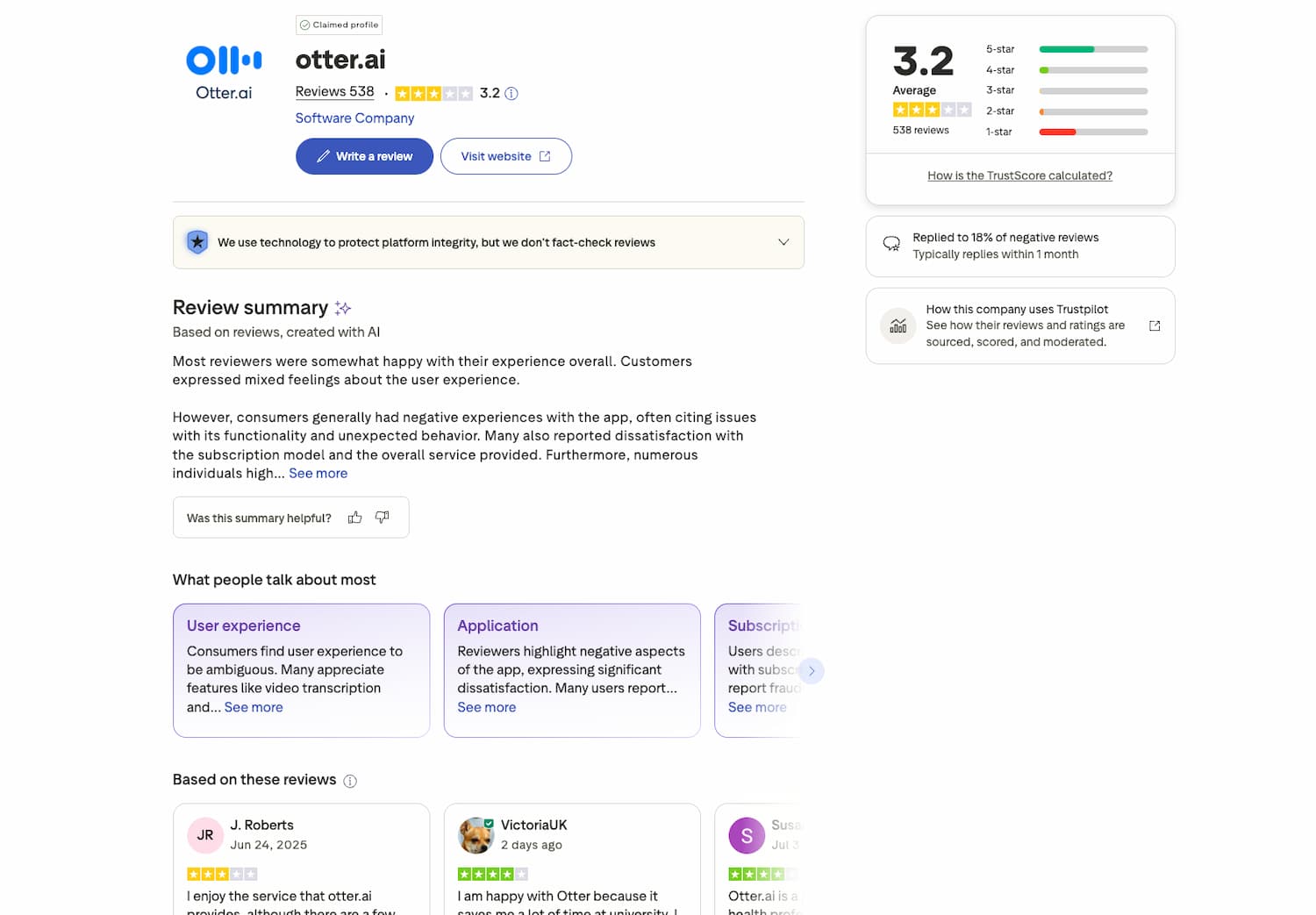
Gartner Peer Insights shows a solid 4.2-star rating for the platform. However, the data reveals a surprisingly low recommendation rate among professionals. While many appreciate the core tech, they hesitate to fully endorse it to their peers.
WIRED recently labeled the software as “clunky” and occasionally “glitchy” in their hands-on testing. This critique balances the initial praise. It reminds us that even popular tools face significant performance hurdles in complex meeting environments.
This shift represents an Invisible Revolution in our daily workflows. Automated tools are quietly changing how we capture data. They transform messy conversations into structured assets without us noticing the heavy lifting.
In the context of Tender resignation guide, these notes become vital. Automated transcripts simplify handovers when employees move on. They preserve institutional knowledge that would otherwise vanish during a sensitive transition period.
User sentiment remains a classic love-hate relationship. Teams genuinely love the hours of manual typing saved each week. Yet, they often hate the intrusive bot behavior and the aggressive calendar joining settings.
Looking toward 2026, the competitive pressure is mounting fast. Otter must polish those “glitchy” edges to stay ahead. Newer AI rivals are hungry, and technical stability will decide who wins the long-term race.
Otter.ai remains a top-tier choice for most professionals. Success simply requires mastering the privacy settings and managing the trade-offs. If you control the bot, it works for you.
This Otter.ai review highlights a powerful tool for real-time transcription, automated summaries, and seamless meeting integration. By mastering your privacy settings today, you can eliminate manual note-taking and reclaim hours of focus every week. Transform your conversations into a searchable database and start working smarter right now.
FAQ
How accurate is the transcription with Otter.ai?
Otter.ai generally delivers an accuracy rate between 90% and 95%, which is the current industry standard for AI-driven tools. It performs exceptionally well with clear audio and consistent speakers, even learning specific voices over time to improve identification in recurring meetings. You can further enhance results by adding custom vocabulary for industry-specific jargon or names.
However, the AI can struggle with heavy background noise or multiple people talking at once. To ensure the best output, I recommend using a dedicated microphone and speaking clearly. While it is a massive time-saver, you should still expect to perform minor manual corrections for mission-critical documents.
Which Otter.ai plan is best for my needs?
The Basic plan is a great starting point for individuals, offering 300 monthly minutes for free, though it limits conversations to 30 minutes. For professionals needing more volume, the Pro plan ($8.33/month billed annually) increases this to 1,200 minutes and allows for 10 file imports. It is often the “sweet spot” for freelancers and researchers who need advanced search and export options.
For teams, the Business plan ($20/month per user billed annually) is the powerhouse option. it provides 6,000 minutes of transcription, administrative controls, and essential integrations with Salesforce and Slack. If you are part of a large corporation with strict security requirements, the Enterprise tier offers HIPAA compliance and dedicated support.
How do I stop the Otter bot from joining every meeting?
The “Otter Pilot” auto-join feature is a common point of friction, but it is easily managed in your settings. To prevent the bot from crashing every calendar event, navigate to Settings > Meetings and toggle off the “Auto-join all meetings” option. This gives you manual control over which sessions the AI attends.
If the bot sneaks into a live call where it isn’t wanted, you can simply remove it as you would any other participant. For a more professional workflow, use “Selective Joining” by manually inviting the bot only to specific meetings via your calendar or the Otter interface.
Is my data safe and private with Otter.ai?
Otter.ai uses industry-standard encryption protocols to protect your data in the cloud. However, because your conversations are stored online, there is always a baseline risk. It is important to note that the tool has faced scrutiny regarding GDPR compliance and recording consent in the past, so always ensure you have permission from all participants before starting a recording.
For those handling highly sensitive information, I suggest checking the “Privacy Mode” in your settings. If you work in high-security sectors like law or finance, it is best practice to consult with your IT department regarding their specific data deletion and cloud security policies before integrating the tool into your workflow.
What are the main pros and cons of using Otter.ai?
The primary benefits include real-time transcription, high-speed processing, and the innovative “Ask Otter” chat feature, which allows you to query your meeting history like a database. The automated summaries and action item generation are significant productivity boosters that save users hours of manual note-taking every week.
On the downside, some users find the interface “clunky” and have reported frustrations with the cancellation process and billing transparency. Additionally, while it supports English, French, and Spanish, it lacks automatic language detection. For many, the trade-off is worth it for the reclaimed focus time, provided you stay on top of your subscription settings.
