
A growing number of users are experimenting with new AI assistants, and one name is appearing more and more frequently in those conversations: Claude AI.
Whether the shift is motivated by stronger writing capabilities, better coding assistance, or simply curiosity about alternatives, many people are exploring how to move from ChatGPT to Claude without losing the context and personalization they’ve built over time.
Until recently, switching AI assistants meant starting from scratch. The memories an AI accumulated about you — your writing style, preferences, ongoing projects, or professional background — were locked inside one platform.
But Claude has introduced a feature designed to remove that barrier entirely: a memory import tool that lets you transfer your stored context from other AI services in just a few minutes.
This guide explains how the migration works, what data actually transfers, and the best practices for ensuring a seamless transition from ChatGPT (or other AI systems) to Claude.
Why People Are Moving from ChatGPT to Claude?
The growing interest in Claude reflects a broader shift in the AI landscape. Many users are now experimenting with multiple assistants instead of relying on a single tool. Claude, developed by Anthropic, has recently gained momentum thanks to improvements in areas such as long-form writing, structured reasoning, and coding assistance.
At the same time, broader debates around AI models and their development have encouraged some users to explore alternatives. In parallel, Claude’s mobile app has climbed to the top of Apple’s App Store rankings among free apps, signaling increased adoption and visibility.
One major obstacle has always remained: personalization data. AI assistants gradually learn about users through conversation, storing details such as interests, professional activities, writing preferences, and recurring tasks. Rebuilding that context from scratch can take weeks or months.
Claude’s new import feature directly addresses that problem.
What the Memory Import Tool Actually Transfers
Modern AI assistants often rely on a memory system to personalize responses. These memories may include explicit information you provided as well as context inferred from past conversations.
Claude’s import system is designed to capture and transfer several types of stored data, including:
- Personal details such as your name, profession, location, or interests
- Instructions about how the AI should respond (tone, formatting preferences, writing style)
- Ongoing projects or recurring topics discussed in previous conversations
- Tools, programming languages, or frameworks you frequently use
- Context about your goals or workflows
In short, the goal is to recreate the personalized assistant experience you already built elsewhere. Instead of teaching a new AI who you are, you simply transfer that knowledge.
The Simple Idea Behind Claude’s Migration System
The core mechanism behind the migration is surprisingly simple. Claude generates a prompt designed to extract all stored memories from another AI assistant. You copy that prompt into the original platform — such as ChatGPT — which then outputs everything it remembers about you in a structured format.
Once generated, that information can be copied back into Claude, which converts it into internal memory entries. Within seconds, Claude gains access to the same contextual information previously stored by another AI.
This approach avoids complex integrations or APIs. Instead, it relies entirely on the conversational interface of the AI systems themselves.
Step-by-Step: How to Import Your Memories into Claude
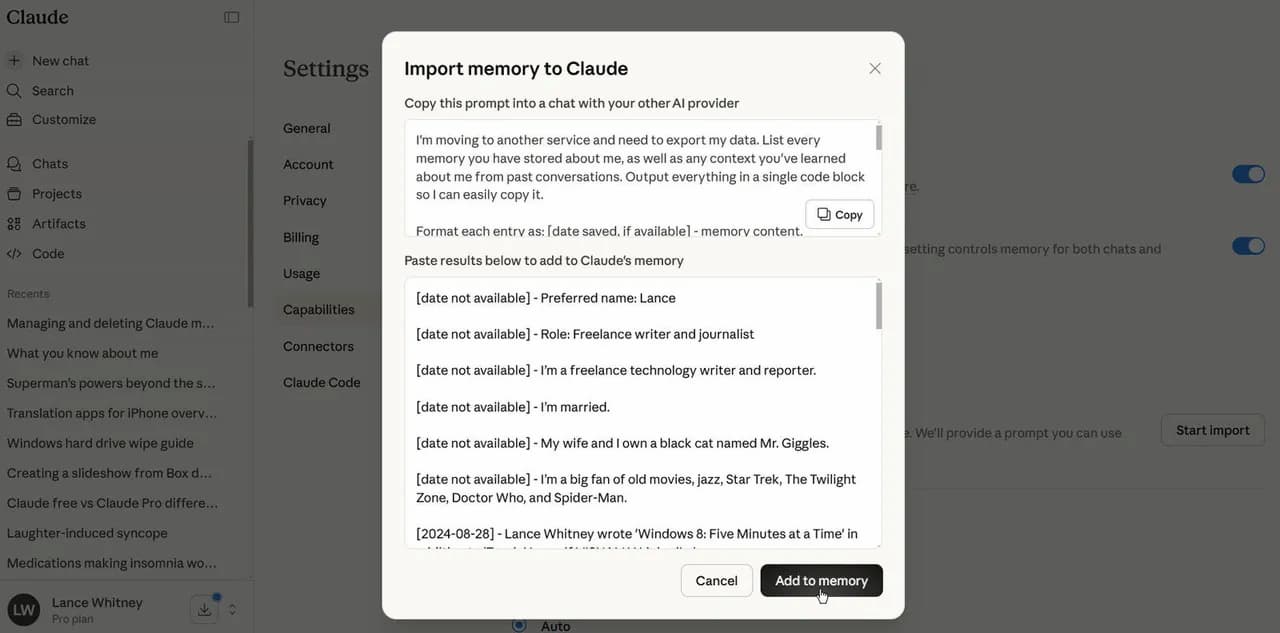
1. Open the Memory Import Tool in Claude
Start by logging into your Claude account. The memory import feature works with both free and paid plans.
There are two ways to access the tool:
- Visit Claude’s dedicated memory import page
- Or open Settings → Privacy → Memory Preferences
From there, select Start Import. Claude will generate a special prompt that is designed to extract all stored memories from another AI service.
2. Copy the Export Prompt
Claude automatically creates a structured instruction asking the other AI assistant to list everything it remembers about you. The prompt typically asks the AI to provide:
- All stored memories
- Context learned from previous conversations
- Instructions you provided about formatting or tone
- Details about projects, interests, or workflows
The AI is instructed to output everything inside a single code block so it can be easily copied.
3. Run the Prompt in ChatGPT (or Another AI)
Next, open the AI service you want to migrate from — for example ChatGPT.
Paste the generated instructions into a prompt and run it. The AI will then retrieve and display all stored memories and context it has about you.
Depending on the model used, the amount of retrieved information may vary. Some models may access deeper conversation history and return more detailed context.
4. Review the Exported Memories
Before importing the data into Claude, it’s a good idea to review the generated list. Because each memory is presented as a separate entry, it is easy to remove anything you do not want to transfer.
For example, you might decide to remove outdated project details or personal information you prefer not to keep.
5. Import the Data into Claude
Once you’ve finalized the memory list, copy it and return to Claude. Paste the entire block into the import window and click Add to Memory.
Claude will then convert the imported information into structured internal memories. After a few seconds, the assistant displays everything it now knows about you.
From that point onward, Claude can use this context to personalize responses exactly as your previous AI assistant did.
How Claude Organizes Imported Memories
One of the notable aspects of Claude’s memory system is how it organizes and maintains imported information. Instead of leaving all entries as static notes, Claude categorizes memories and continuously updates them.
Over time, the assistant refines this information based on new conversations. In some cases, memories are regenerated or updated automatically to reflect more recent context.
This dynamic system means that the assistant gradually evolves with your usage patterns rather than simply storing static notes.
Migrating Projects and Workspaces
Some users organize their AI conversations using projects — collections of chats, files, and instructions related to specific workflows.
If you rely on this structure, migrating projects requires a slightly different approach.
First, run the export prompt inside the project environment so the AI retrieves project-specific context. Then create a new project inside Claude and manually add the extracted information to the project’s instructions and memory.
Although this step involves some manual work, it effectively recreates the entire project environment inside Claude.
Checking What Claude Knows About You
After completing the migration, you can easily verify the imported data. Simply start a new chat and ask Claude what it knows about you.
The assistant will display the memories currently stored in its system. This makes it easy to confirm that your preferences and context were successfully transferred.
How to Manage or Delete Stored Memories
Claude also gives users full control over stored memories. If you want to remove information, you can do so directly through the settings panel.
Inside Settings → Memory Preferences, you can delete individual entries, clear all stored memories, or disable automatic memory generation entirely.
Alternatively, you can simply ask Claude in a conversation to delete its stored memories about you, and the system will comply.
A Sign of a More Competitive AI Ecosystem
The introduction of memory migration tools reflects a broader shift in the AI industry. Instead of locking users into a single ecosystem, platforms are beginning to compete more directly on user experience and capabilities.
By allowing people to bring their personalization data with them, Claude lowers one of the biggest barriers to trying new AI assistants. Users no longer need to choose between experimentation and losing months of accumulated context.
As AI tools continue evolving, features like cross-platform memory portability may become a standard expectation rather than a novelty.
The Bottom Line
Switching AI assistants no longer requires abandoning the personalized context you built over time. Claude’s memory import tool allows users to transfer their stored preferences, workflows, and personal details from platforms like ChatGPT in just a few minutes.
The process relies on a simple but effective mechanism: extracting memory data through a structured prompt and importing it directly into Claude’s memory system.
For users curious about trying a new AI assistant — whether for writing, coding, or productivity — the migration process is now easier than ever.